
You received the link to your family tree
Someone in your family made a tree on Parenthèse and is inviting you to look at it and add to it. There is nothing to install and no account to create. Here is how it works, step by step, on a phone or a computer.
1. Open the tree
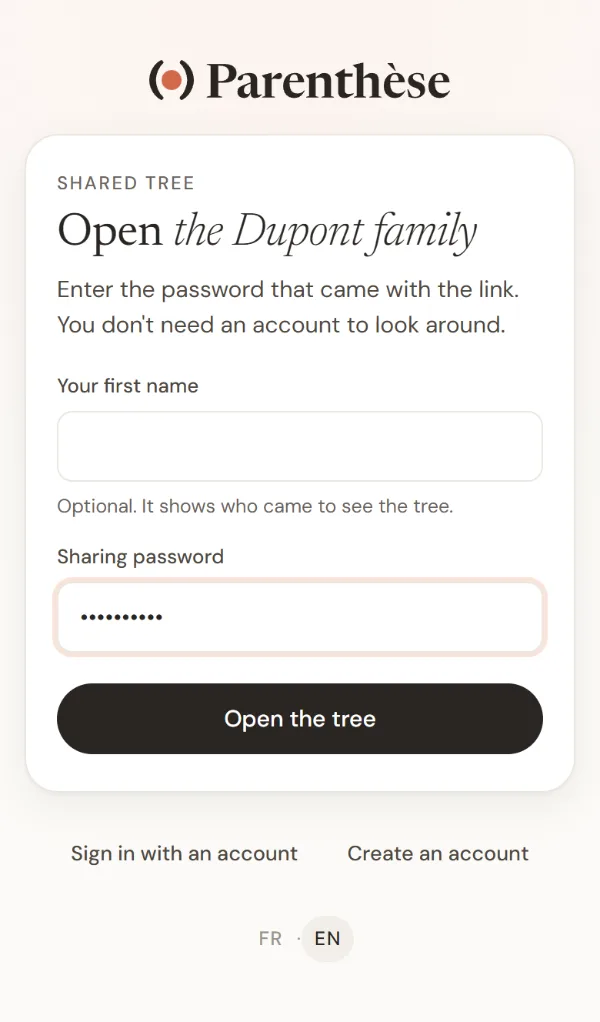
Tap the link you received by email, text message or WhatsApp. A page opens with the name of the tree.
Type the password that came with the link, with the capital letters exactly as given, then tap “Open the tree”. Keep the message with the link and the password, you will need it to come back.
2. Look around
The first time, a short welcome note appears. Tap “View the tree” to close it.
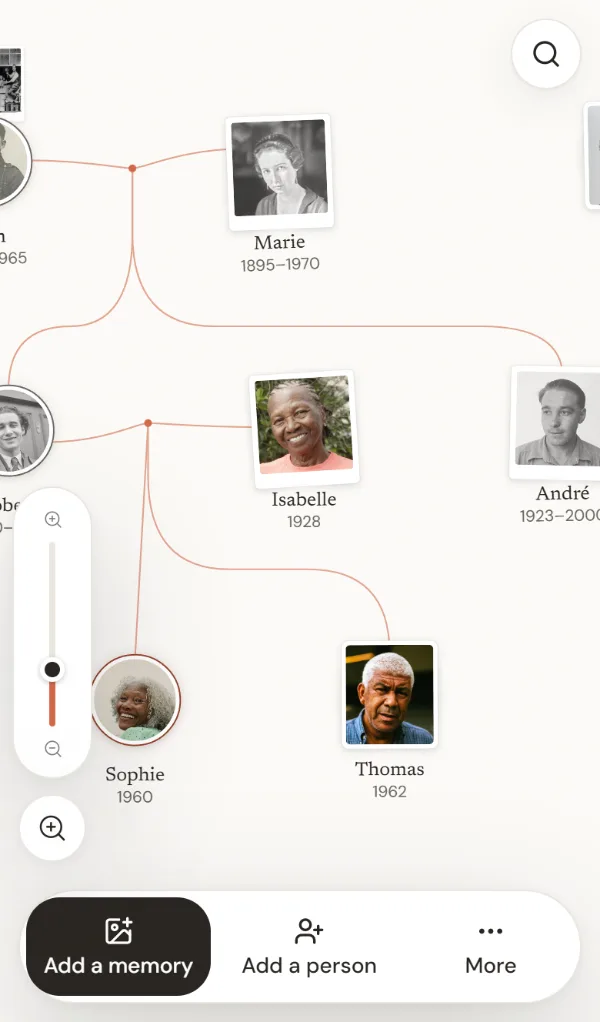
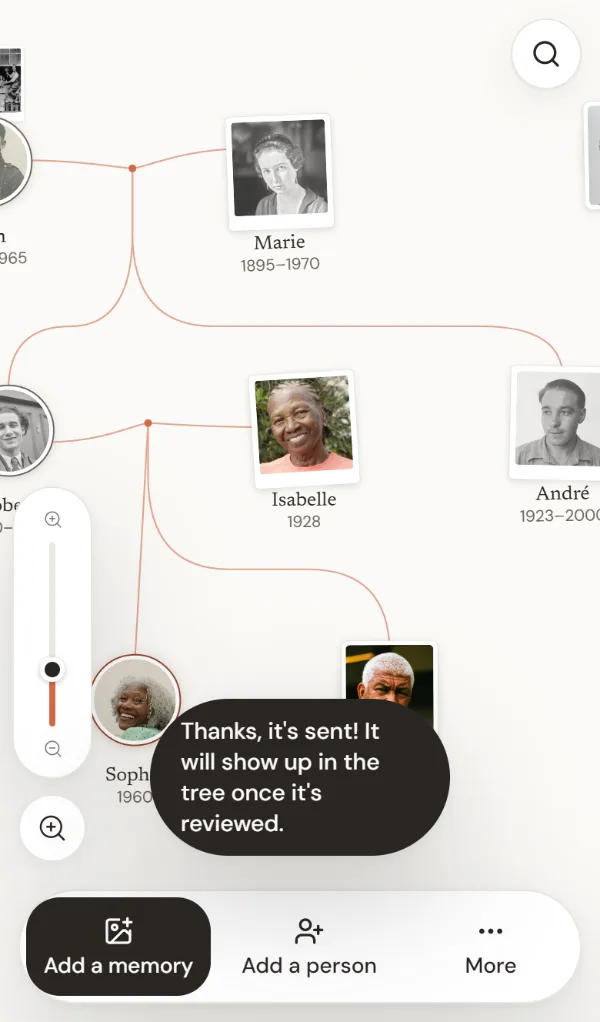
Each portrait is a person in the family. To move around, drag the tree with your finger. To zoom in, spread two fingers apart on the screen, and pinch them together to see more. The magnifying glass, at the top right, finds someone by their first name.
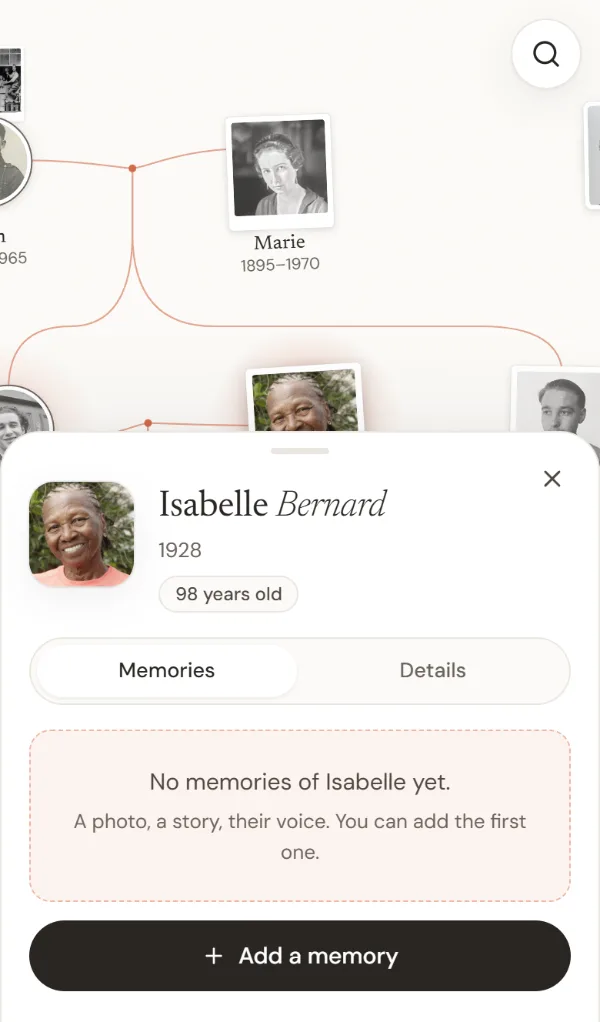
Tap a portrait to open that person's profile, with their photos, memories and dates. The cross at the top of the profile closes it.
3. Add a memory
A memory can be a photo, a video, a voice recording, something she or he used to say, or a document like a letter or an announcement card.
- Tap “Add a memory”, at the bottom of the screen.
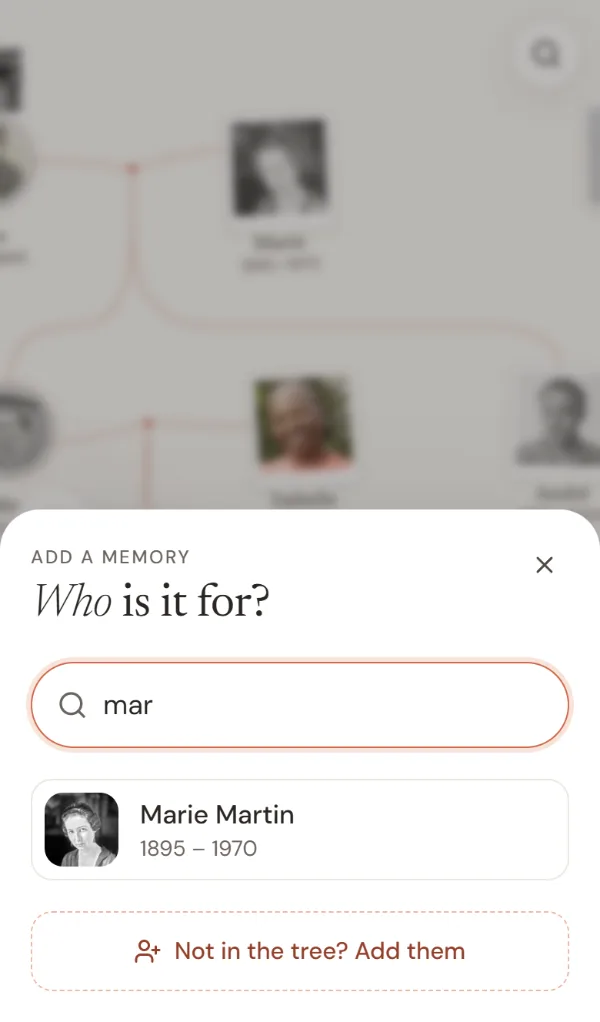
- Type the first few letters of the person's first name, then tap their portrait.
- Choose what you are adding, for example Photo, then tap “Choose a file”. Your phone shows you your photos, tap the one you want.
- If you like, write a caption (the year, the place, who is in the photo). Also write your first name, so the family knows who shared it.
- Tap “Add this memory”. A message confirms it has been sent.
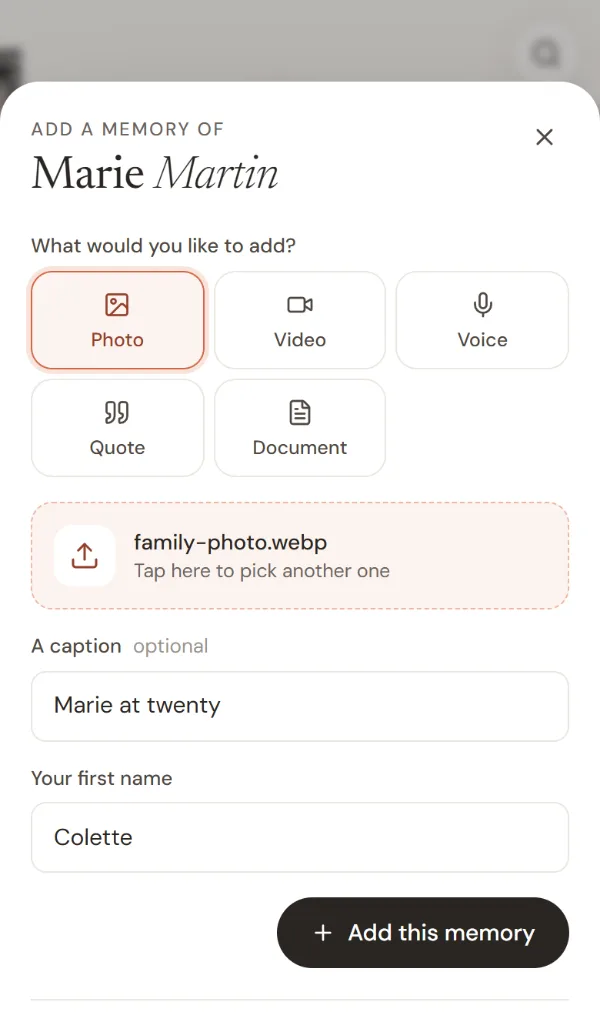
You can also start from the profile. Tap the person's portrait, then “Add a memory”, below their photos.
4. Add a missing person
- Tap “Add a person”, at the bottom of the screen.
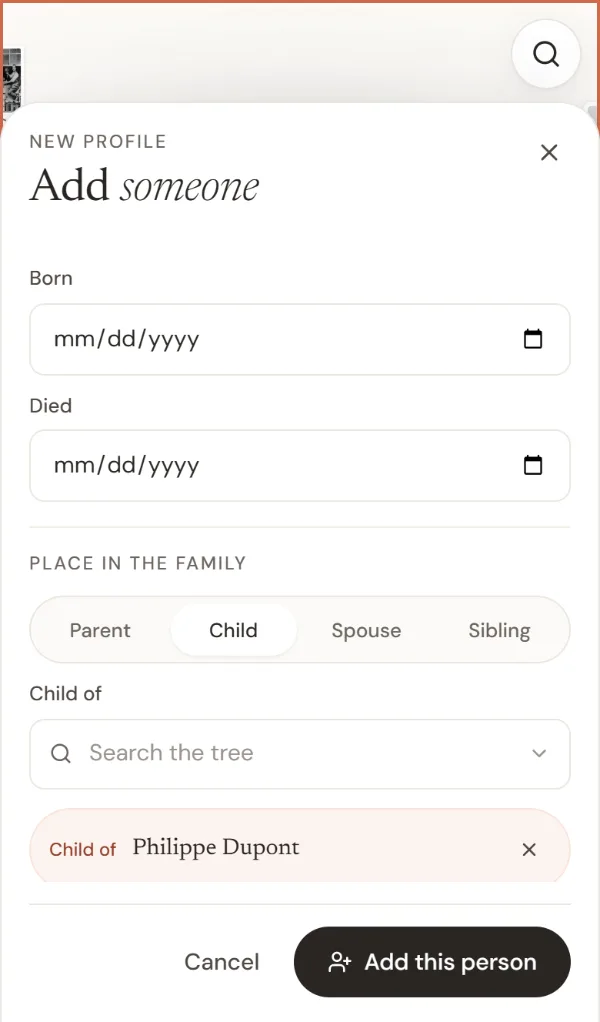
- Write their first and last name, and their dates if you know them.
- Say who they are related to. Choose Parent, Child, Spouse or Sibling, then type the first name of the person already in the tree and tap them in the list.
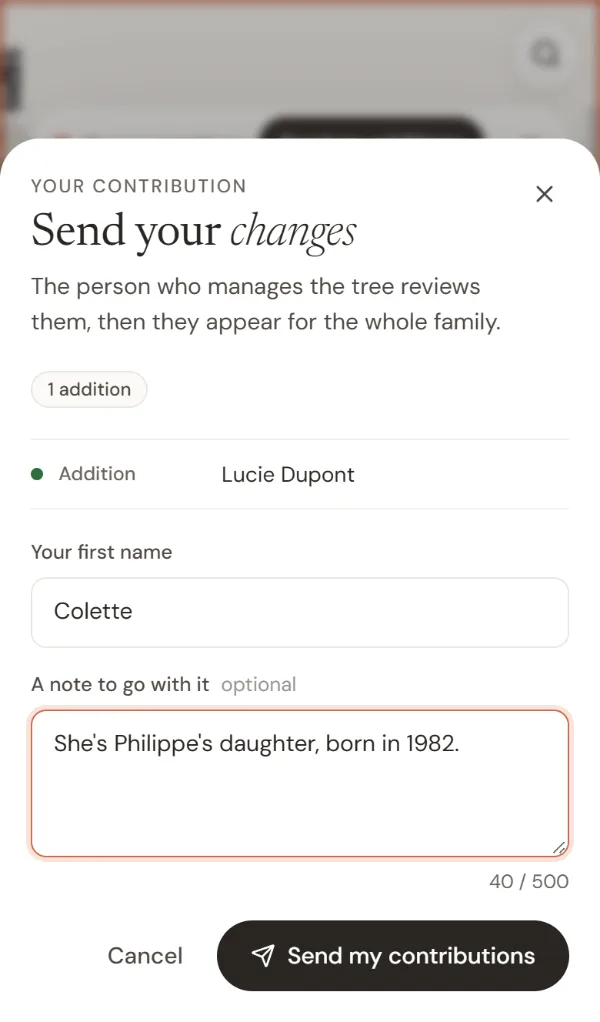
- Tap “Add this person”. A window opens with your first name and a box for a note, if you want to explain. Tap “Send my contributions”.
5. What happens next
The person who manages the tree receives what you sent, reviews it, then adds it. Your photos, your memories and the people you added then appear for the whole family. There is nothing else for you to do.
If you see a wrong date or a misspelled name, the simplest thing is to tell the person who sent you the link.
Frequently asked questions
I lost the password
Ask the person who sent you the link. They can find it in the tree, in the sharing panel.
The password is not accepted
Check the capital letters and make sure there is no extra space before or after it. If it is still not accepted, it may have been changed. Ask the person who manages the tree for the new one.
Do I need to create an account?
No. The link and the password are enough to view the tree and add memories to it. An account only lets you get back to the tree without typing the password again.
Does it work on a computer?
Yes. The same buttons are at the bottom right of the screen. To zoom in on the tree, turn the mouse wheel, and click a portrait to open that person's profile.
My photo won't upload
A photo can be up to 5 MB and a video up to 20 MB. If it is rejected, send a smaller version, or ask someone in the family to add it for you.
Who can see the tree?
Only people who have the link and the password. The tree does not show up in search engines. The details are on the data and privacy page.
Make your own family tree
It's free, and your family adds to it through a link, just like you did.
Start your tree